

Workspaces and navigation
Build a sidebar workspace with defineWorkspace, group it, add a live badge, and keep it in sync with the admin UI.
A workspace is a sidebar entry that bundles the views one team needs to do one job. In this guide you'll build a door check-in workspace for a wedding: a roster of attending guests with a one-click Check In button, a live badge counting guests who haven't arrived yet, and access limited to your event staff.
By the end you'll see an Operations group in the admin sidebar with a Door Check-In item, and the badge will show how many guests are still to come. The example follows the guest-responses collection in apps/example-creator-next.
Before you start
You need a collection with the fields you want to filter on. Step 2 shows the whole collection, so you can follow along from scratch. This guide uses a guest-responses collection with name, email, attending (boolean), checkedIn (boolean) and checkedInAt (date and time) fields. If you haven't built views before, read Define a view first. It takes a few minutes.
1. Define the action and the view
The door team needs a Check In button on every row. Actions with a mutation update the record for you, so you don't need a server handler:
import { defineAction, defineView } from "@dyrected/core";

export const checkInAction = defineAction({
  name: "checkIn",
  label: "Check In",
  icon: "UserCheck",
  type: "row",
  confirm: "Confirm guest check-in at the door?",
  mutation: { checkedIn: true, checkedInAt: "now()" },
});

export const rosterView = defineView({
  collection: "guest-responses",
  slug: "attending-guests",
  label: "Check-In Roster",
  icon: "UserCheck",
  layout: "table",
  filter: { attending: { equals: true } },
  columns: ["name", "email", "guestCount", "tableNumber", "checkedIn"],
  sort: { field: "name", direction: "asc" },
  actions: [checkInAction],
});
Notice the collection: "guest-responses" line. Views declared inside a collection get their collection for free, but a workspace can hold views from any collection, so each view names its own.
2. Wrap the view in a workspace
defineWorkspace is where the sidebar entry comes from. Here is the complete config for the example, with the collection, the view from step 1, and the workspace in admin.navigation. It uses the SQLite setup from Installation, so swap in your own adapter if you use a different one:
import {
  defineConfig,
  defineCollection,
  defineTextField,
  defineBooleanField,
  defineNumberField,
  defineDateTimeField,
  defineWorkspace,
} from "@dyrected/core";
import { sqliteAdapter } from "@dyrected/db-sqlite";
import { rosterView } from "./views";

const GuestResponses = defineCollection({
  slug: "guest-responses",
  admin: { useAsTitle: "name", icon: "Users" },
  fields: [
    defineTextField({ name: "name", label: "Full Name", required: true }),
    defineTextField({ name: "email", label: "Email" }),
    defineBooleanField({ name: "attending", label: "Attending" }),
    defineNumberField({ name: "guestCount", label: "Plus-Ones", defaultValue: 0 }),
    defineNumberField({ name: "tableNumber", label: "Table Number" }),
    defineBooleanField({ name: "checkedIn", label: "Checked In", defaultValue: false }),
    defineDateTimeField({ name: "checkedInAt", label: "Checked In At" }),
  ],
});

export default defineConfig({
  collections: [GuestResponses],
  globals: [],
  db: sqliteAdapter({ filename: "./data.db" }),
  admin: {
    navigation: [
      defineWorkspace({
        slug: "door-checkin",
        label: "Door Check-In",
        icon: "UserCheck",
        group: { name: "Operations", icon: "Briefcase", defaultExpanded: true },
        views: [rosterView],
      }),
    ],
  },
});
This assumes you saved the action and view from step 1 in views.ts next to your config. Nothing else changes: the collection is the same one you already have, and the workspace only adds a new way into it.
Open the admin and you should see Operations → Door Check-In. The workspace lives at /door-checkin, and the first view in views is the one that opens by default.
A workspace with one view renders as a plain link. Add a second view, such as a card-based guest directory, and it becomes an expandable item with each view underneath. Try it to see the difference.
The
slugbecomes a top-level URL, so a few names are off limits:collections,globals,setup,api,login,logout,settings,admin,preferences, andauth. Dyrected throws a clear error at startup if you use one, so you'll find out right away.
3. Add a live badge
A badge tells the door team there is work waiting without opening the roster. Give the workspace an aggregate badge that counts attending guests who haven't checked in:
defineWorkspace({
  slug: "door-checkin",
  label: "Door Check-In",
  icon: "UserCheck",
  group: { name: "Operations", icon: "Briefcase", defaultExpanded: true },
  badge: {
    aggregate: {
      collection: "guest-responses",
      where: { attending: { equals: true }, checkedIn: { equals: false } },
    },
    variant: "warning",
  },
  views: [rosterView],
});
Here is how it looks in the example app. Door Check-In is a single-view workspace, so it's a plain link with its warning badge. Guest Operations holds four views, so it expands into a submenu, and its badge shows the total of attending guests.
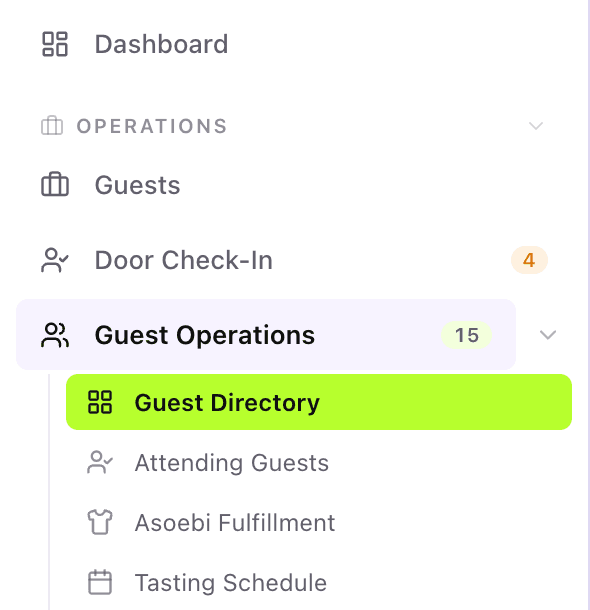
The count comes from a database aggregate, so it stays cheap on large collections. Checking a guest in refreshes it. variant picks the colour: default, warning, destructive, info, or success.
Views can carry their own badge too, which is handy for an "Urgent" view inside a larger queue.
If you just want a fixed label instead of a count, pass a string. badge: "New" shows a default-coloured badge reading "New", and badge: { text: "Beta", variant: "info" } does the same with a colour of your choice.
4. Limit who sees it
Add access with the role names your auth collection assigns:
defineWorkspace({
  slug: "door-checkin",
  label: "Door Check-In",
  access: ["admin", "editor"],
  views: [rosterView],
});
People whose role (or roles) doesn't match won't see the workspace in their sidebar. The check runs on the server when the admin loads its navigation, so hidden items aren't sent to the browser.
Two things to keep in mind. First, this list form is the only one the server enforces for navigation. A function-based access rule doesn't hide the item. Second, hiding a sidebar item is not a security boundary: the workspace's data is still protected only by your collection's own access rules, so keep those in place.
Place existing collections and globals
defineWorkspace also moves collections and globals you already have, without creating a new workspace. Point at the collection and give it a group and order:
defineWorkspace({ collection: "blog-articles", group: "Content", order: 1 }),
defineWorkspace({ collection: "pages", group: "Content", order: 2 }),
Anything you don't mention still shows up in the default sections, so you never lose a collection by forgetting it.
To attach extra views to a collection's submenu instead of creating a new workspace, use addToCollection:
defineWorkspace({ addToCollection: "guest-responses", views: [rosterView] }),Control the order
Items sort by order (lower first, default 100). When you need precision, use one of these instead:
| Option | What it does |
|---|---|
order | Numeric weight within the group. Groups accept order too. |
position: "first" or "last" | Pins the item to the start or end of its group. |
before / after | Places the item next to another collection or workspace slug. |
Keep the admin UI and your code in sync
Admins can rearrange the sidebar from the admin UI, and those changes are stored as preferences. Both routes produce the same shape, so you can move changes between them with the CLI:
# Turn UI-configured navigation into defineWorkspace code
npx dyrected nav pull --scope global

# Publish the navigation defined in dyrected.config.ts to the server
npx dyrected nav push
Add --dry-run to nav pull to print the generated TypeScript without touching your files. Use --scope role --role <name> to pull a single role's layout.
Where to go next
- Copy a finished setup: KYC review, order fulfillment, or support desk.
- Add KPI cards above a view with Metrics.
- Learn how views become URLs in Routing and preferences.