

Spreadsheet layout
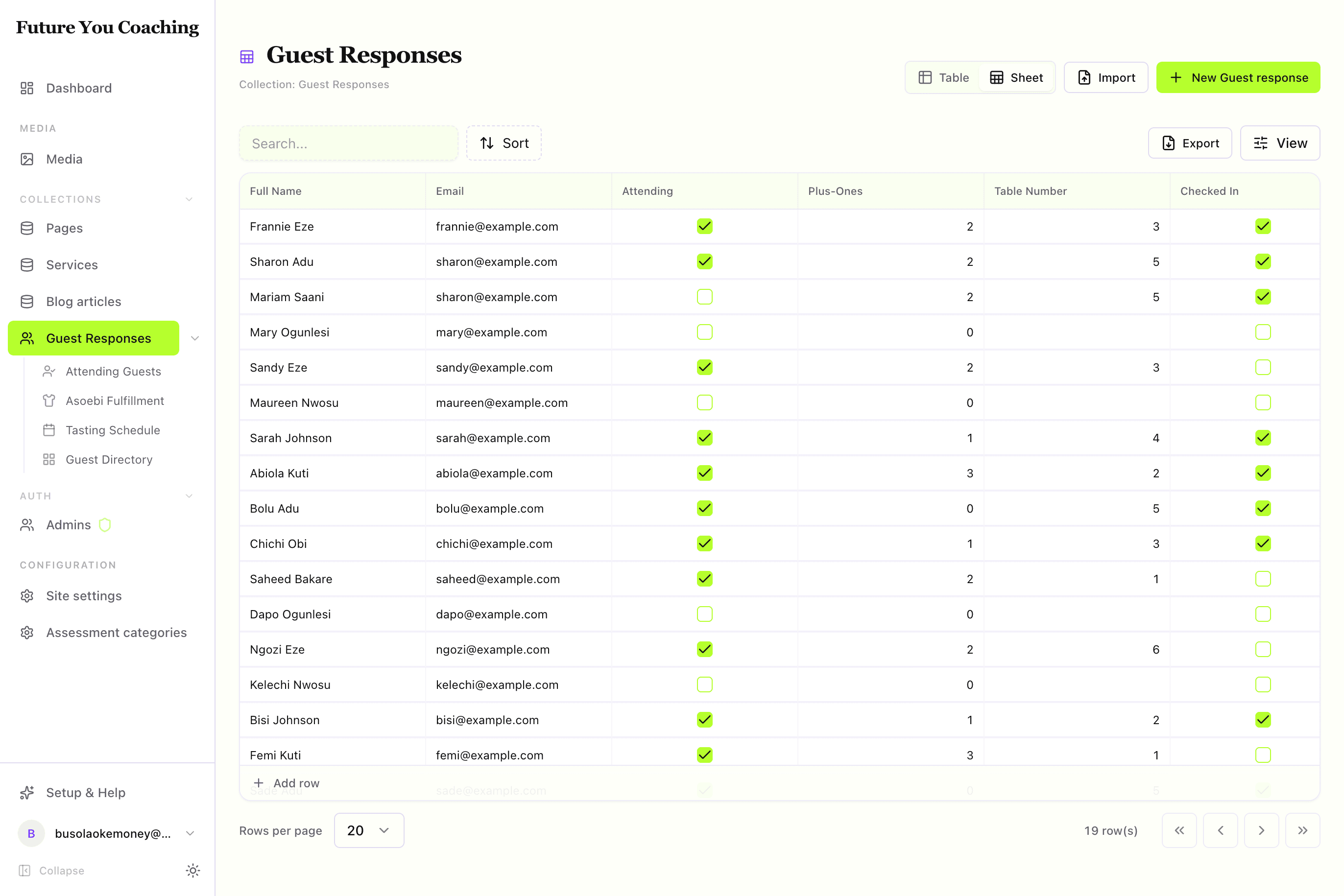
An inline-editable grid for bulk fixes — cell editors, copy/paste, and a Save / Discard batch bar.
A spreadsheet is a form that looks like a grid. When the job is "fix 12 prices, flip three featured flags, fill missing sizes," opening 12 forms is the failure. A view with layout: "spreadsheet" turns the filtered subset into an editable matrix with type-aware editors and a batch save.
By the end you should know which fields edit inline vs in a popover, how batch save works, and why blocks and richText stay out of the grid.
Visual outcome
When to use
- Use when: You need to rapidly edit simple fields (prices, stock quantities, status flags, dates) across 10+ rows without clicking into individual edit forms.
- Don't use when: Records require heavy nested block editing (
blocks), or when editors are working on a single record.
Complete example
Configure a spreadsheet matrix view for fast inline editing:
import { defineView } from "@dyrected/core";

export const tableSeatingGrid = defineView({
  slug: "table-seating-grid",
  label: "Seating & Outfit Matrix",
  icon: "TableProperties",
  layout: "spreadsheet",
  filter: { attending: { equals: true } },
  columns: ["name", "tableNumber", "asoebiSize", "asoebiQuantity", "wellWishes"],
});
Setting layout: "spreadsheet" renders the data in a full keyboard-accessible spreadsheet grid.
Grouped spreadsheets
When records have natural categories — such as seating tables, event tracks, or inventory categories — add groupBy to organize the spreadsheet into collapsible sections:
import { defineView } from "@dyrected/core";

export const tableSeatingGrid = defineView({
  slug: "table-seating-grid",
  label: "Seating Matrix",
  icon: "TableProperties",
  layout: "spreadsheet",
  groupBy: "tableNumber",
  filter: { attending: { equals: true } },
  columns: ["name", "tableNumber", "asoebiSize", "asoebiQuantity"],
});
Contextual row creation
In a grouped spreadsheet, each section header includes a + Add to [Group] button:
- Clicking
+ Add to Table 2creates a new row withtableNumber: 2already set. - Clicking
+ Add to Unassignedleaves the grouping field empty so you can assign it later.
All inline cell edits and new rows across every group accumulate in the same floating Save changes bar, committing everything in a single atomic batch.
How fields edit in the grid
| Field Type | Cell Editor Interaction | Commit Timing |
|---|---|---|
text, email, url | Direct inline text editing | On cell blur / Enter |
number | Direct inline numeric input | On cell blur / Enter |
boolean | Interactive checkbox toggle | Immediate toggle |
date / datetime / time | Inline calendar / time flyout | On date selection |
select, radio | Searchable dropdown popover | On option select |
multiSelect | Multi-tag dropdown popover | On item check |
relationship, image | Standard media/document picker | On asset select |
textarea, json | Anchored popover editor | On blur (Esc discards) |
richText | Slide-over full rich-text editor | On drawer close |
blocks | Complex blocks are edited in the form | Open the record form |
Batch saving & safety
Changes made in the grid are staged locally in the browser so you can modify multiple rows before committing:
- Save Changes: Submits all modified cells and newly created rows in a single batch, running validation and backend hooks.
- Discard: Resets all unsaved cell edits back to the current server state.
Keyboard navigation
The grid supports full spreadsheet navigation shortcuts:
Tab/Shift + Tab: Navigate to next/previous cell across columns.Enter/Down Arrow: Commit cell and move to the row below.Esc: Cancel cell editing.Ctrl/Cmd + C/Ctrl/Cmd + V: Copy and paste cell values.